Stylized Cat Portrait Tutorial for Procreate
Paint a stylized cat portrait in Procreate with free Twotap files. Design-forward fur and a clear pet-portrait next step.
Download the free files
Procreate-ready, yours to keep
Stylized pet portraits are one of the fastest ways to practice design choices in Procreate. This free tutorial walks you through a cat portrait with downloadable files so you can follow every stage.
Use the video as your pacing guide, and keep fur strokes intentional rather than noisy. When you are ready for a deeper pet workflow, see Pet Portraits on Twotap.
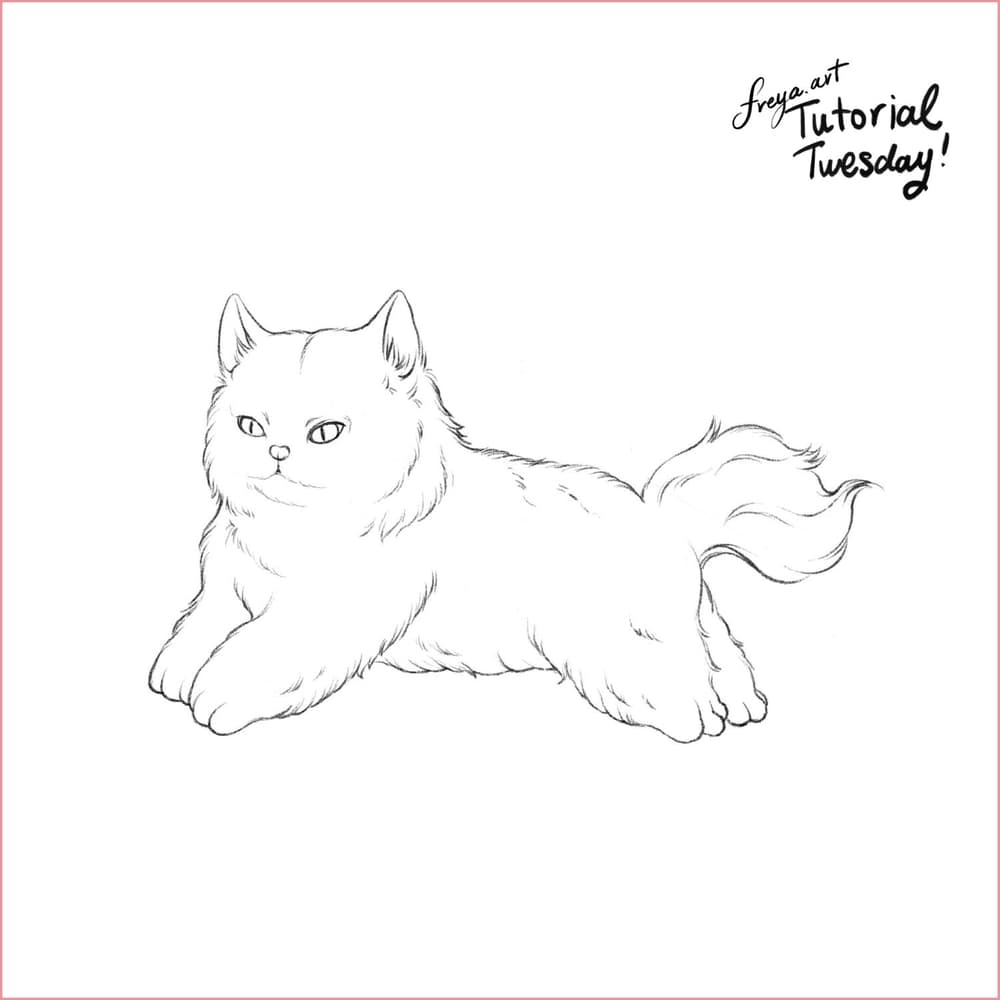
Let's start by creating a 3000 x 3000-pixel canvas. Import the sketch provided in the tutorial files. You can add another layer on top to trace the sketch using the 6B or Peppermint Brush. Alternatively, if you want to skip drawing the sketch, you can set the sketch layer's color mode to multiply and then add a layer underneath. Then you can color it like you would a regular coloring page.
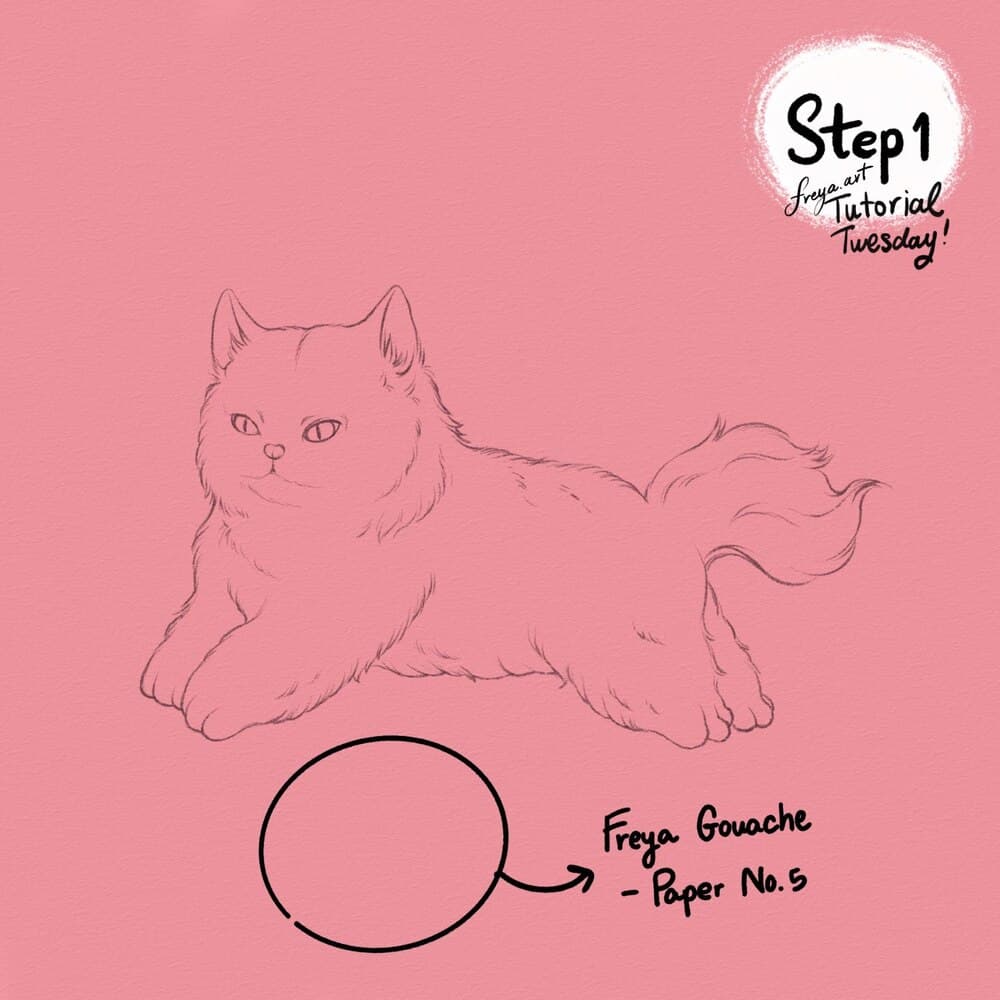
Step 1: Add a layer on top of all the layers in your canvas. Rename it as texture. Using a mid-grey color, use the Twotap Gouache Paper No. 5 brush to cover the entire layer with texture. Then set the layer color mode to Linear Burn so that the texture will also apply to all layers underneath it. Lock this layer.
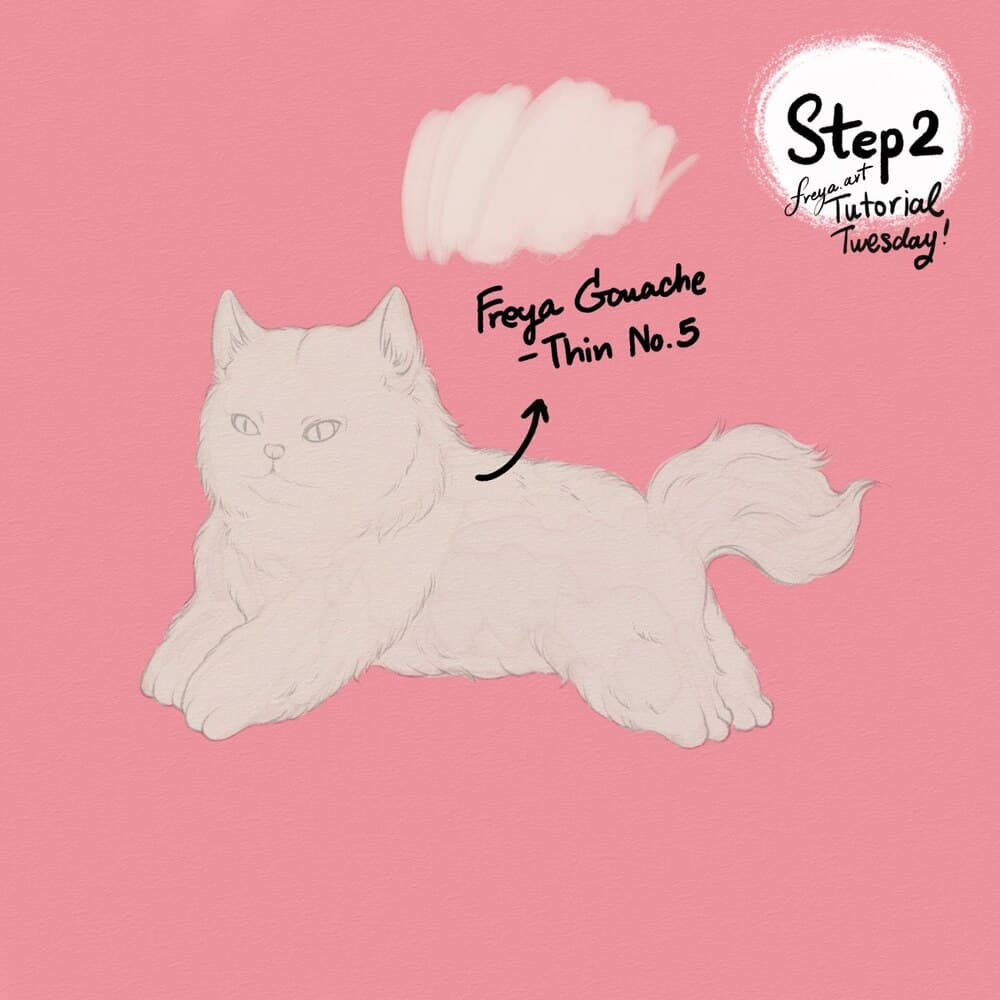
Step 2: In a new layer fill out the cat's body using Twotap Gouache Thin No. 5. Rename this as the "base layer".
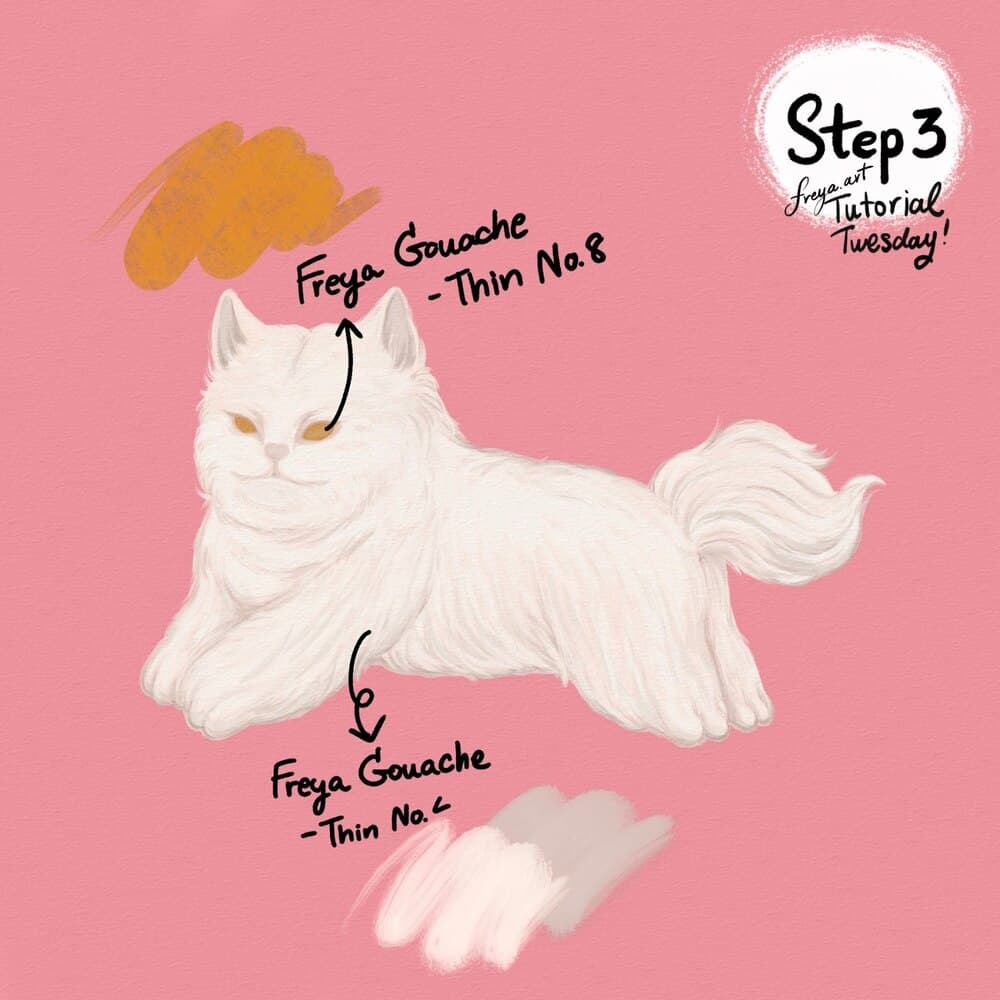
Step 3: Add a clipping mask on top of the base layer and slowly add the fur details using Twotap Gouache Thin no. 4. Then in another layer, color in the eyes with Twotap Gouache Thin No. 8. Rename this layer as eyes.
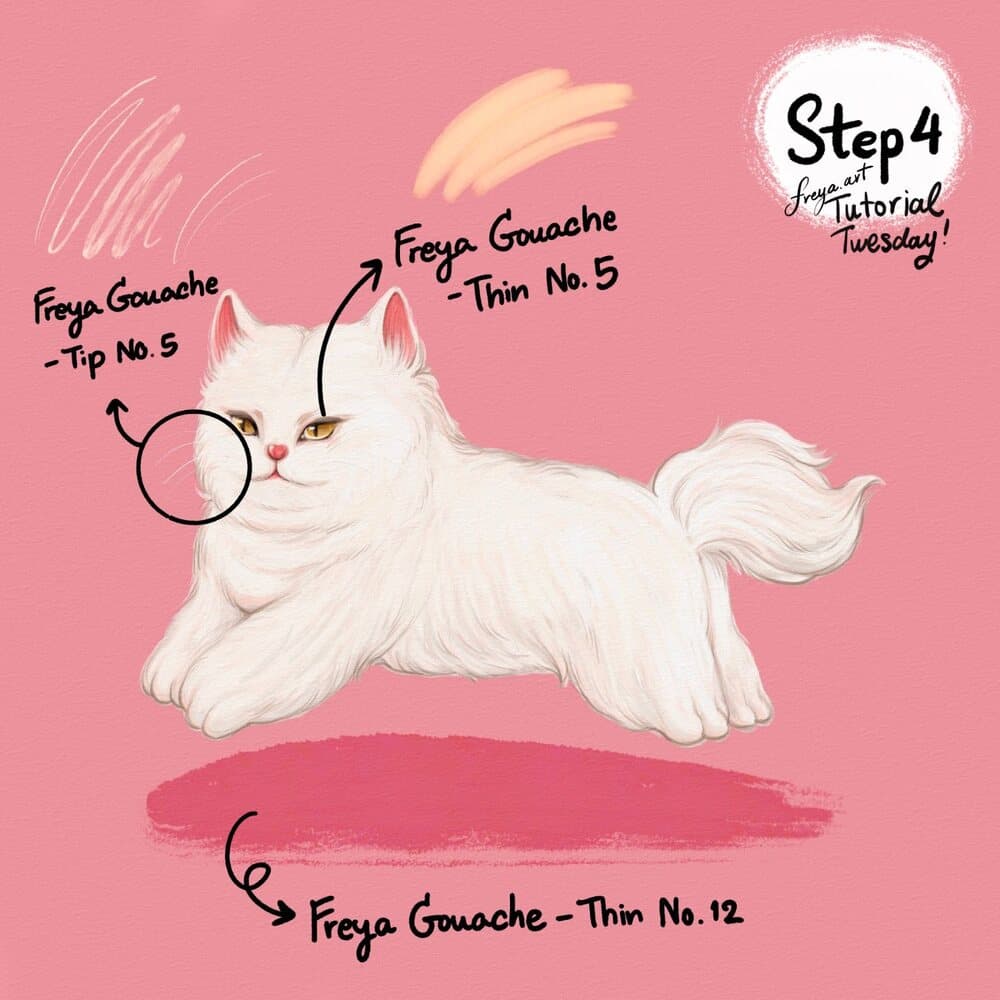
Step 4: Add details for the eyes, using Twotap Gouache Thin No. 5. For the whiskers, use Twotap Gouache Tip No. 5. To create the illusion that the cat is jumping, add a shadow underneath, using Twotap Gouache Thin No. 12.
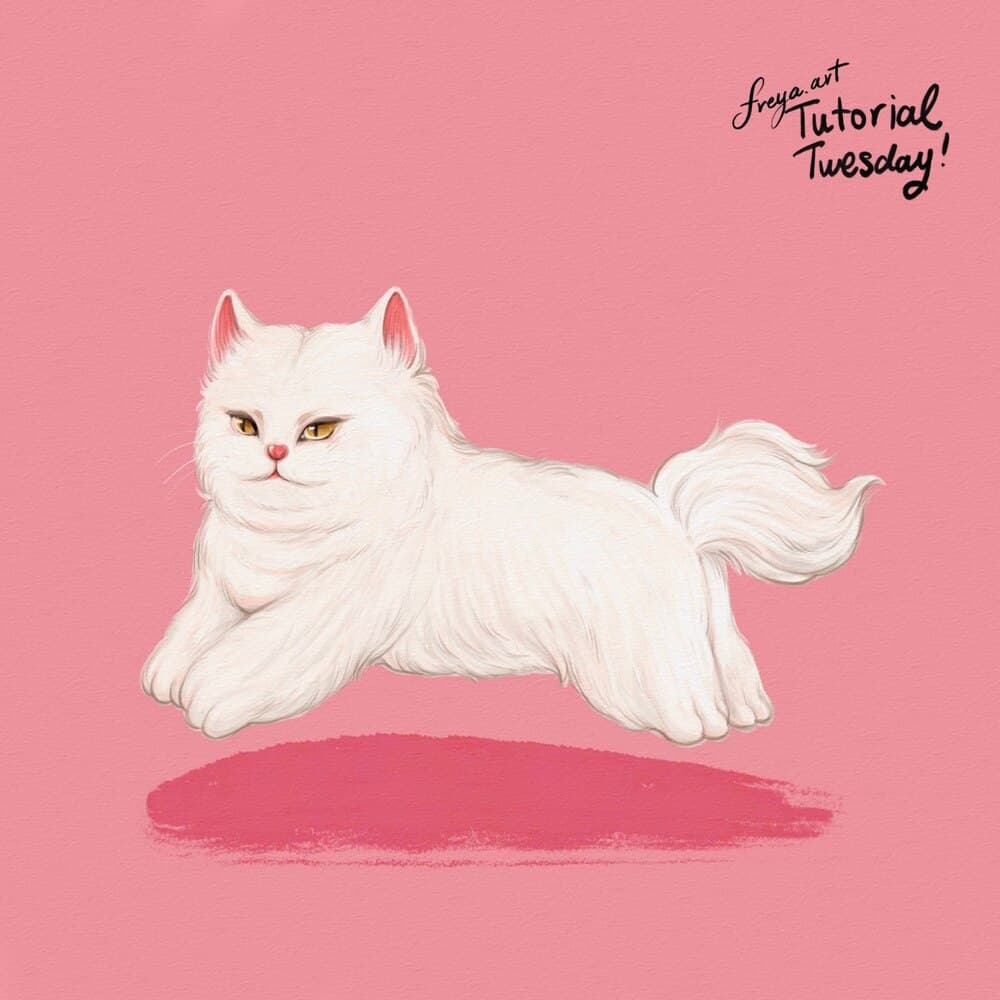
Congratulations! You've just completed this short tutorial using the free brushes from our Realistic Gouache Brush Set. Please don't forget to tag Twotap in case you post it on social media.
Nice finish on your cat portrait. Try the same structure with a different reference photo, or browse more Twotap lessons on the blog.
Want a full pet workflow next? See Pet Portraits and the Fur Brush Set on Twotap.


